> ## Documentation Index
> Fetch the complete documentation index at: https://docs.salesask.com/llms.txt
> Use this file to discover all available pages before exploring further.
# GoHighLevel dialer
> Send GoHighLevel calls to Sales Ask with an inbound and an outbound workflow.
GoHighLevel sends each call to Sales Ask through a workflow webhook. You create one workflow for inbound calls, then duplicate it for outbound calls.
To connect GoHighLevel as your CRM, see [GoHighLevel CRM](/integrations/crm/gohighlevel).
The same workflow steps as a printable PDF with screenshots.
## Before you start
* Your [organization API key](/integrations/dialers/overview#organization-api-key)
* A GoHighLevel **Private Integration Token** with the `users.readonly` scope. You can reuse the token from the [CRM setup](/integrations/crm/gohighlevel#get-your-credentials).
## Step 1: Connect in Sales Ask
1. Go to **Settings → Integrations** and open **GoHighLevel Dialer**.
2. Paste the Private Integration Token and click **Save**.
Sales Ask uses the token to look up the email of the GoHighLevel user who took each call, so the call is filed under the right rep.
## Step 2: Create the inbound workflow
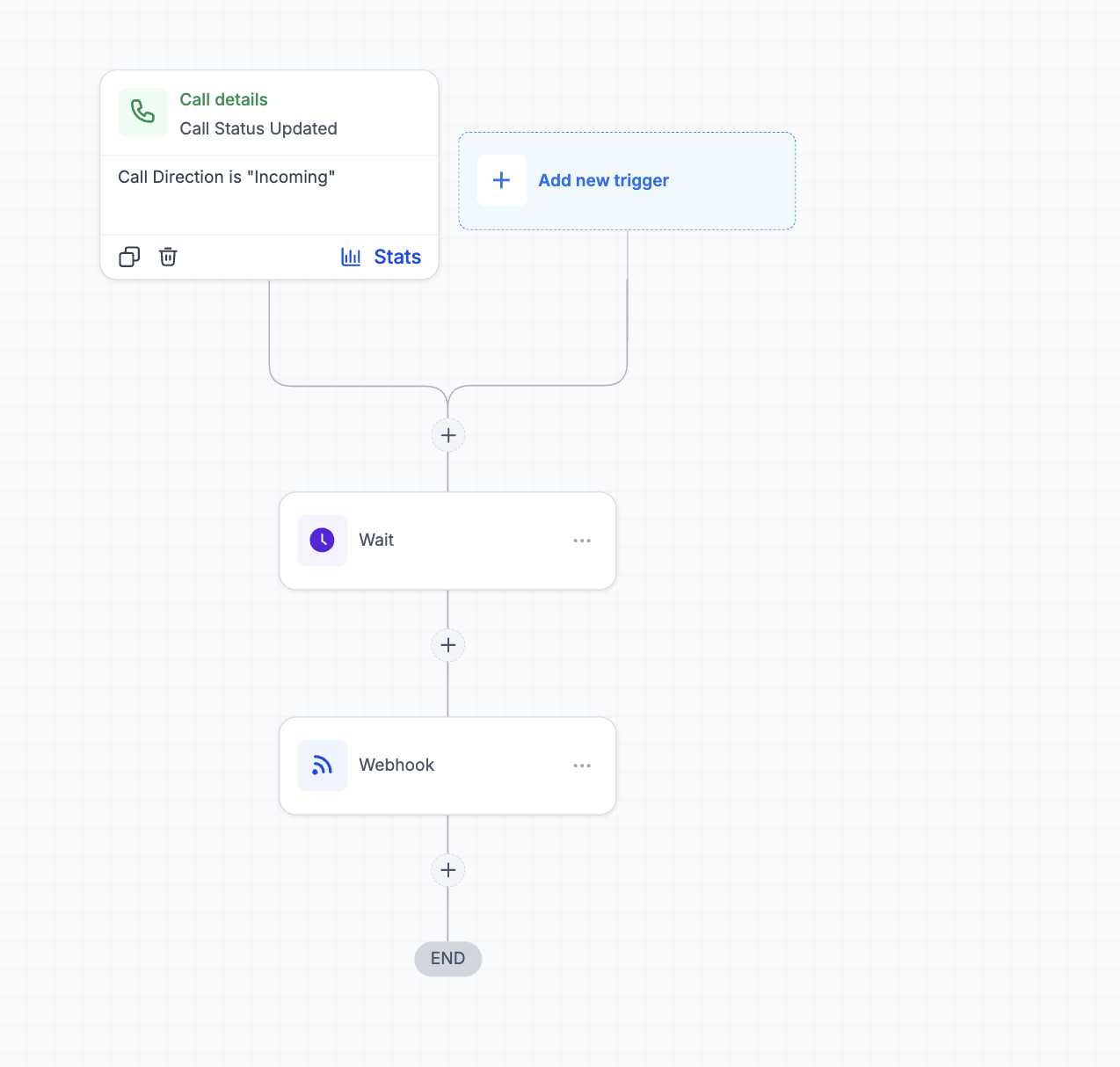
1. In GoHighLevel, create a new workflow named `Sales Ask Inbound Webhook`.
2. Set the trigger to **Call Status Updated** with **Call Direction** set to **Incoming**.
3. Add a **Wait** action, then a **Webhook** action.
 ## Step 3: Set the wait
Set the **Wait** action to **1 minute**.
## Step 4: Configure the webhook
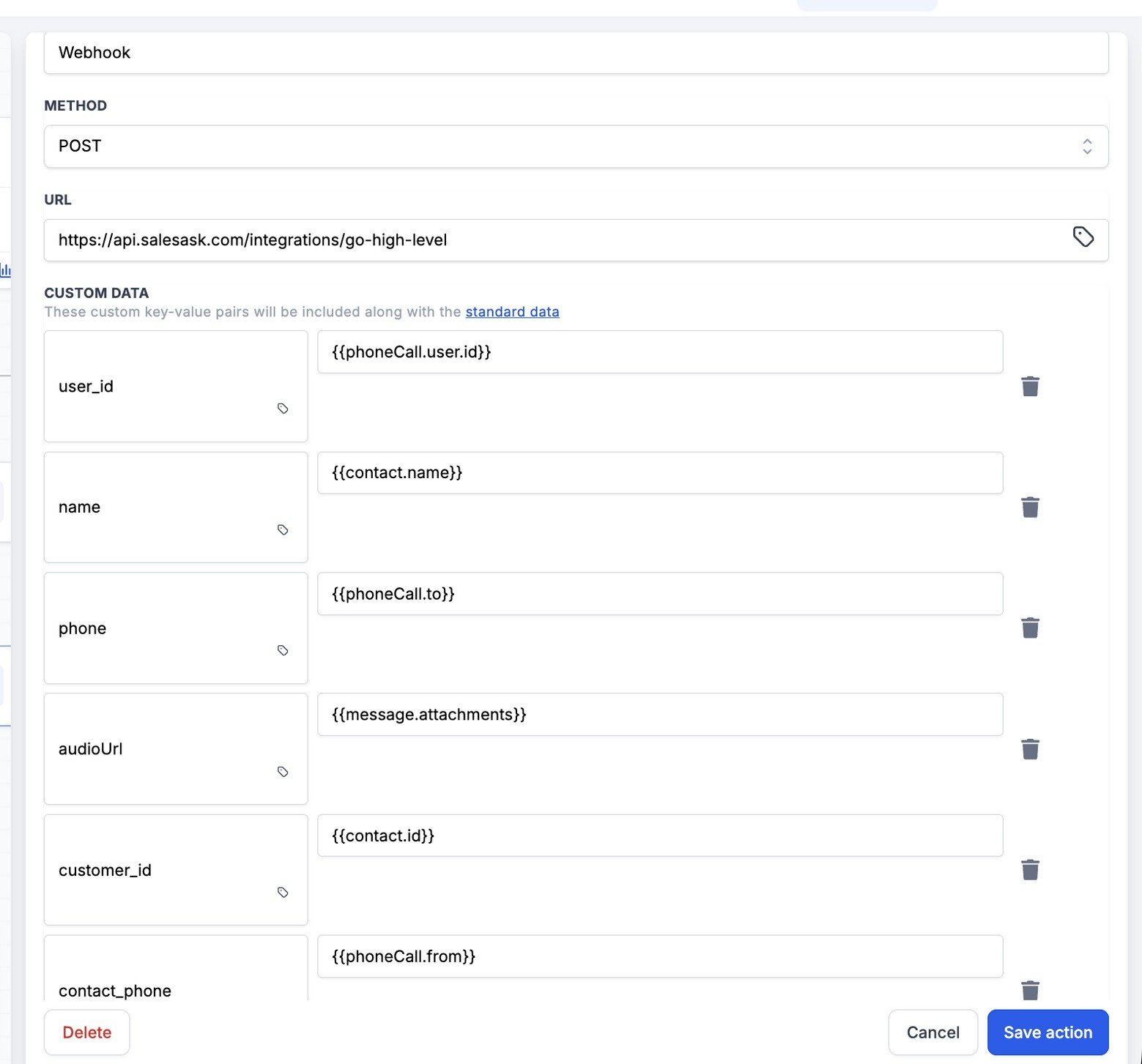
1. Set **Method** to `POST`.
2. Set **URL** to:
```text theme={null}
https://api.salesask.com/integrations/go-high-level
```
3. Under **Custom Data**, add these keys:
| Key | Value |
| - | - |
| `user_id` | `{{phoneCall.user.id}}` |
| `name` | `{{contact.name}}` |
| `phone` | `{{phoneCall.to}}` |
| `audioUrl` | `{{message.attachments}}` |
| `customer_id` | `{{contact.id}}` |
| `contact_phone` | `{{phoneCall.from}}` |
## Step 3: Set the wait
Set the **Wait** action to **1 minute**.
## Step 4: Configure the webhook
1. Set **Method** to `POST`.
2. Set **URL** to:
```text theme={null}
https://api.salesask.com/integrations/go-high-level
```
3. Under **Custom Data**, add these keys:
| Key | Value |
| - | - |
| `user_id` | `{{phoneCall.user.id}}` |
| `name` | `{{contact.name}}` |
| `phone` | `{{phoneCall.to}}` |
| `audioUrl` | `{{message.attachments}}` |
| `customer_id` | `{{contact.id}}` |
| `contact_phone` | `{{phoneCall.from}}` |
 ## Step 5: Add authorization
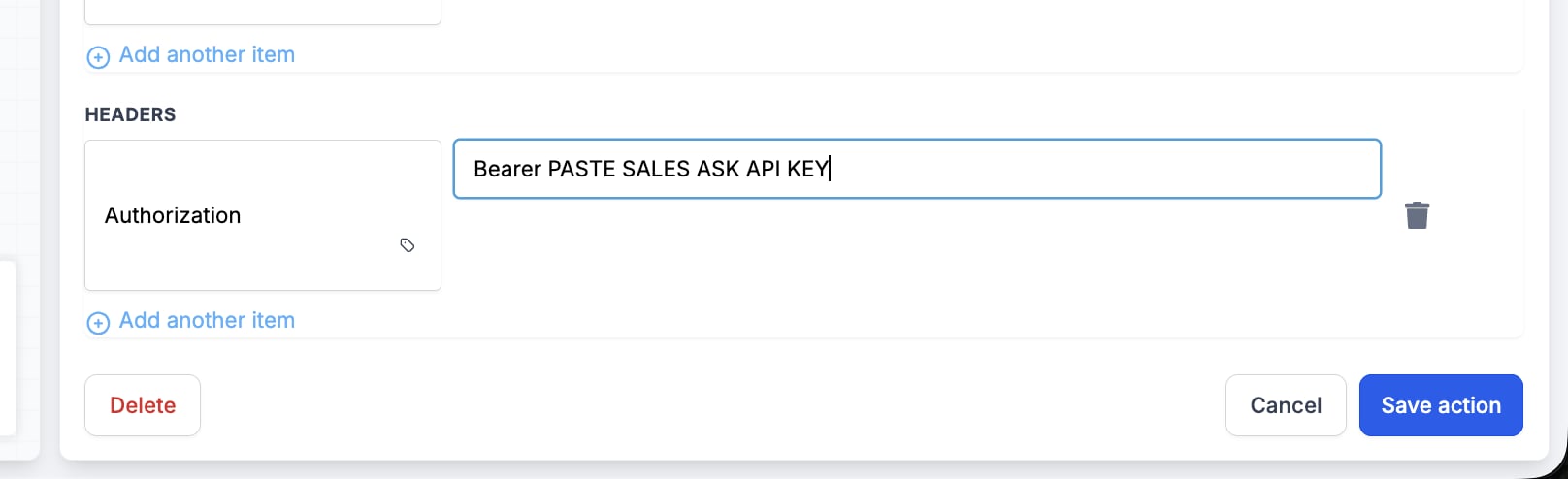
1. Under **Headers**, add:
| Key | Value |
| - | - |
| `Authorization` | `Bearer YOUR_API_KEY` |
Replace `YOUR_API_KEY` with your organization API key. Keep the word `Bearer` and the space after it.
2. Click **Save action**, then **Publish** the workflow.
## Step 5: Add authorization
1. Under **Headers**, add:
| Key | Value |
| - | - |
| `Authorization` | `Bearer YOUR_API_KEY` |
Replace `YOUR_API_KEY` with your organization API key. Keep the word `Bearer` and the space after it.
2. Click **Save action**, then **Publish** the workflow.
 ## Step 6: Duplicate the workflow for outbound calls
1. Go back to the **Automations** list.
2. Duplicate `Sales Ask Inbound Webhook`.
3. Rename the copy to `Sales Ask Outbound Webhook`.
## Step 7: Change the copy to outbound
Change only these three settings:
| Setting | New value |
| - | - |
| **Call Direction** | **Outgoing** |
| `contact_phone` | `{{phoneCall.to}}` |
| `phone` | `{{phoneCall.from}}` |
Keep the 1-minute Wait, the URL, the other custom data, and the Authorization header unchanged. Then **Save** and **Publish** the outbound workflow.
When you're done, both workflows show as **Published**:
## Step 6: Duplicate the workflow for outbound calls
1. Go back to the **Automations** list.
2. Duplicate `Sales Ask Inbound Webhook`.
3. Rename the copy to `Sales Ask Outbound Webhook`.
## Step 7: Change the copy to outbound
Change only these three settings:
| Setting | New value |
| - | - |
| **Call Direction** | **Outgoing** |
| `contact_phone` | `{{phoneCall.to}}` |
| `phone` | `{{phoneCall.from}}` |
Keep the 1-minute Wait, the URL, the other custom data, and the Authorization header unchanged. Then **Save** and **Publish** the outbound workflow.
When you're done, both workflows show as **Published**:
 ## How calls are matched to reps
Sales Ask files each call under the rep whose Sales Ask email matches the GoHighLevel user on the call. If no email is found, it matches the rep's line (`phone`) against the phone number on each rep's Sales Ask profile.
Calls with no recording, such as missed calls and voicemails, are skipped.
This documentation is built and hosted on [Mintlify](https://mintlify.com), a developer documentation platform.
## How calls are matched to reps
Sales Ask files each call under the rep whose Sales Ask email matches the GoHighLevel user on the call. If no email is found, it matches the rep's line (`phone`) against the phone number on each rep's Sales Ask profile.
Calls with no recording, such as missed calls and voicemails, are skipped.
This documentation is built and hosted on [Mintlify](https://mintlify.com), a developer documentation platform.